The connector shape is only the beginning
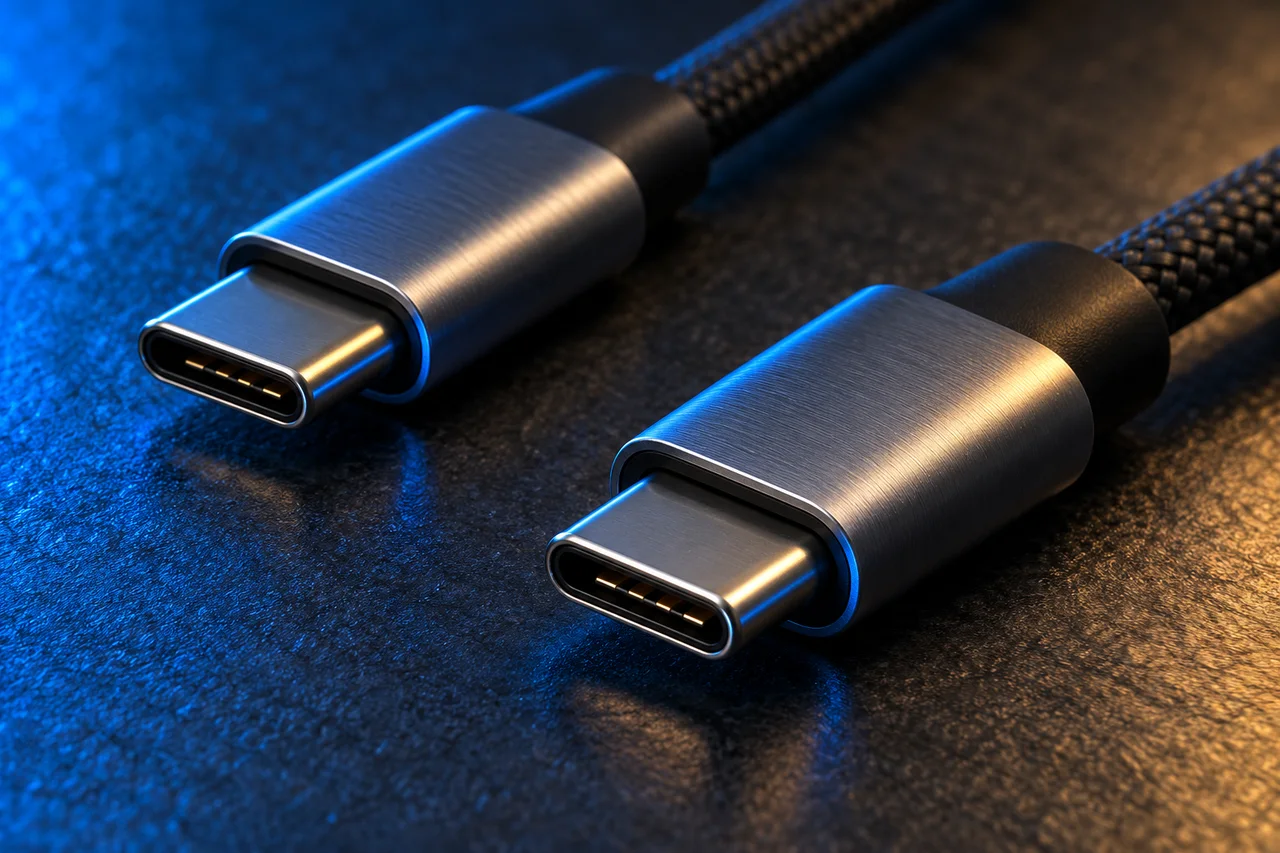
USB-C describes a connector type. USB-IF documentation covers cables with this connector that carry only USB 2.0 data, even when they can handle substantial charging power. “USB-C” therefore does not mean “fast file transfers”, nor does it establish video support. [1]
Imagine using the same laptop to copy videos from an external drive, recharge its battery and connect a display. These are three different requirements. A cable meeting the second may not meet the first or third. Instead of looking for an abstractly “good” cable, define which task you need to solve.
Power: read the entire chain
USB Power Delivery negotiates power between compatible devices and supports up to 240 W in the relevant configurations. This is a system capability, not a promise that every charger or computer reaches it. [2] USB-IF publishes power-rating marks to identify certified cables. [3]
For an actual purchase, write down the input power recommended by the laptop manufacturer, the charger’s capabilities and the cable specification. For a multiport charger, also check how power is distributed when several devices are connected. A large figure on the box may describe total output rather than each port simultaneously.
If the computer reports slow charging, start by reviewing these three specifications. Randomly swapping cables makes the limiting component harder to identify. Do not use connectors that are damaged, deformed, smell unusual or become abnormally hot.
Data and displays: two more checks
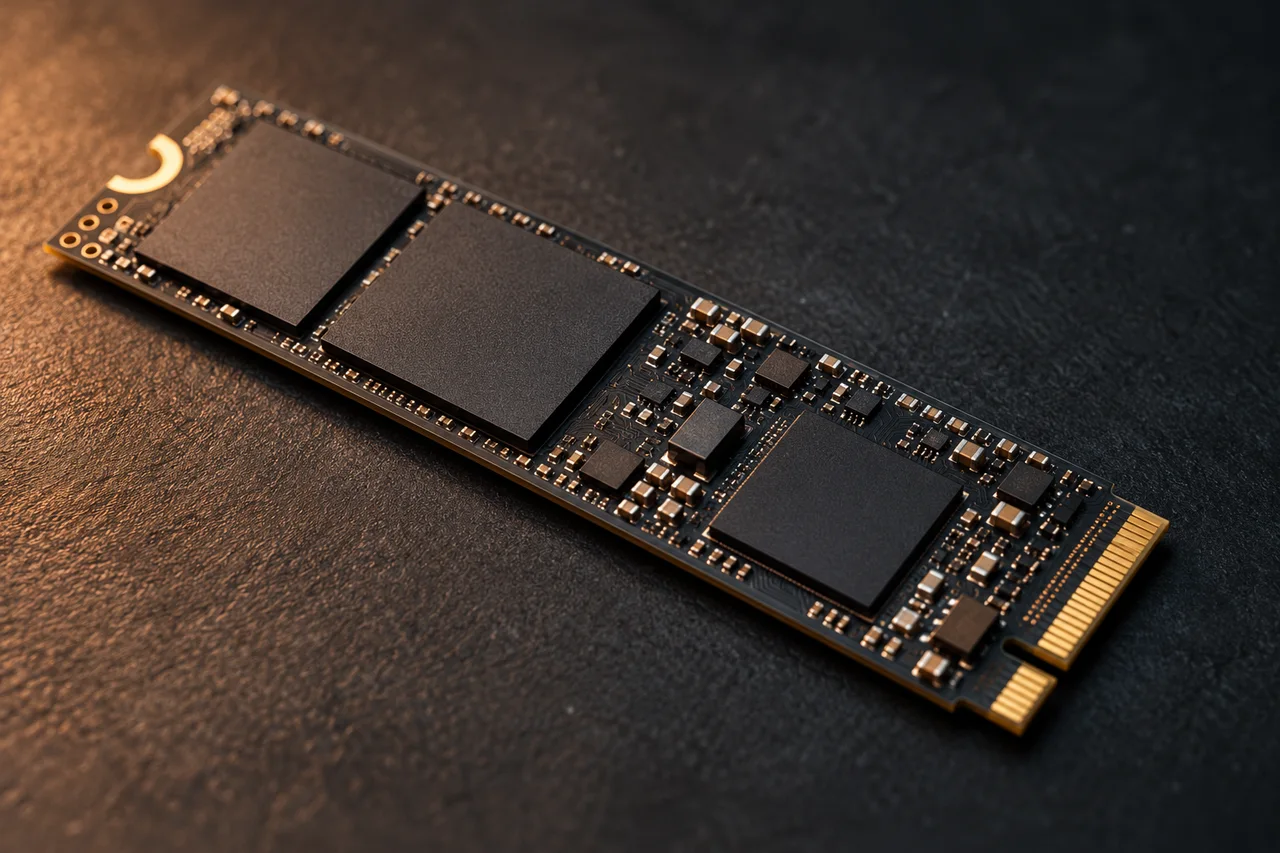
For an external drive, compare the declared data speeds of the port, cable and enclosure. Distinguish Gbit/s from GB/s: eight bits make a byte, and usable throughput also depends on protocol overhead and the actual workload. A link-speed figure does not establish how long thousands of small files will take to copy.
For a display, look for explicit video-output support in the computer’s manual. Then check the adapter or dock and the resolution and refresh rate supported by the combination. A cable fitting physically, or charging the laptop, does not establish that it can carry that display signal.
| Your goal | Information to look for |
|---|---|
| Charge a laptop | Compatible power ratings and profiles across charger, cable and computer. |
| Copy files | Data speed throughout the connection. |
| Connect a display | Video output and modes supported by port, cable and adapter. |
Organize the cables you already own
A simple approach is to identify a combination that works for each task and add your own cable label: “laptop charging”, “drive” or “monitor”. Do not assign a certification because a cable passes a home test; the label only records your verified use.
Keep the manufacturer’s specification and product reference. If a listing only says “fast charging” or “high speed” without stating capabilities, ask for details before buying. Choosing from verifiable information is generally more useful than paying for a rugged appearance or a difficult-to-interpret marketing name.
Worked example: charging works but file copies are slow
Hypothetical setup: an external SSD, a 10 Gbit/s port and a USB-C cable specified for USB 2.0 data at 480 Mbit/s. Charging may work correctly, but transfers cannot use the port's 10 Gbit/s capability. The lowest limit in the chain sets a ceiling, not a guaranteed speed.
For a decimal 20 GB file, 480 Mbit/s gives an arithmetic maximum of 60 MB/s: at least 333 seconds, or about 5 minutes 33 seconds. At 10 Gbit/s, the arithmetic minimum would be 16 seconds. Real copying takes longer because of overhead, storage, temperature and file characteristics. These are not benchmark results.
Check before buying blindly
- Connect the drive directly, without a dock, using a known cable with documented data specifications.
- Copy the same large file between the same drives. Do not compare thousands of photos against one video.
- Record GB, seconds and MB/s; repeat and watch for speed dropping after the first few seconds.
- If it improves, reintroduce the dock and then the other cable, one at a time. This isolates the change that affects the result.
This test does not establish video compatibility. A cable that copies quickly must still support the video function required by the computer and display. For charging, check compatible power profiles as well as the printed wattage.
Sources and documentation
Sources consulted on October 7, 2026. Original documentation; linked sources may be in English.