Three names, three clues
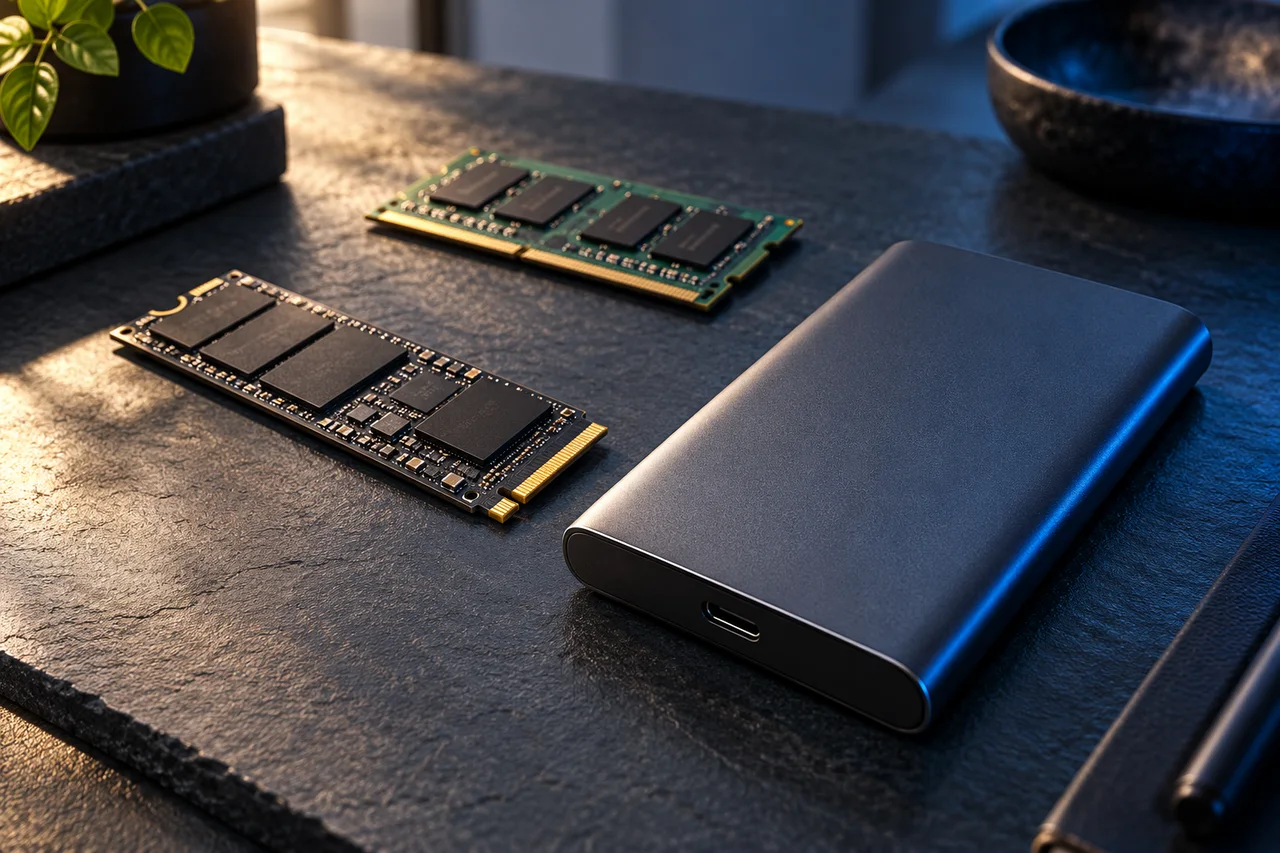
M.2 describes a form factor, NVMe is a protocol and SATA is a storage interface. Kingston explains that M.2 drives can use different connection technologies. It also distinguishes M.2 from mSATA: a similar appearance does not make them interchangeable. [1]
A photograph of the slot is therefore insufficient. You need the capabilities of the exact computer model. Two machines in the same commercial family may have different configurations. Find the maintenance manual or motherboard documentation before opening a store listing.
Make a compatibility sheet before buying
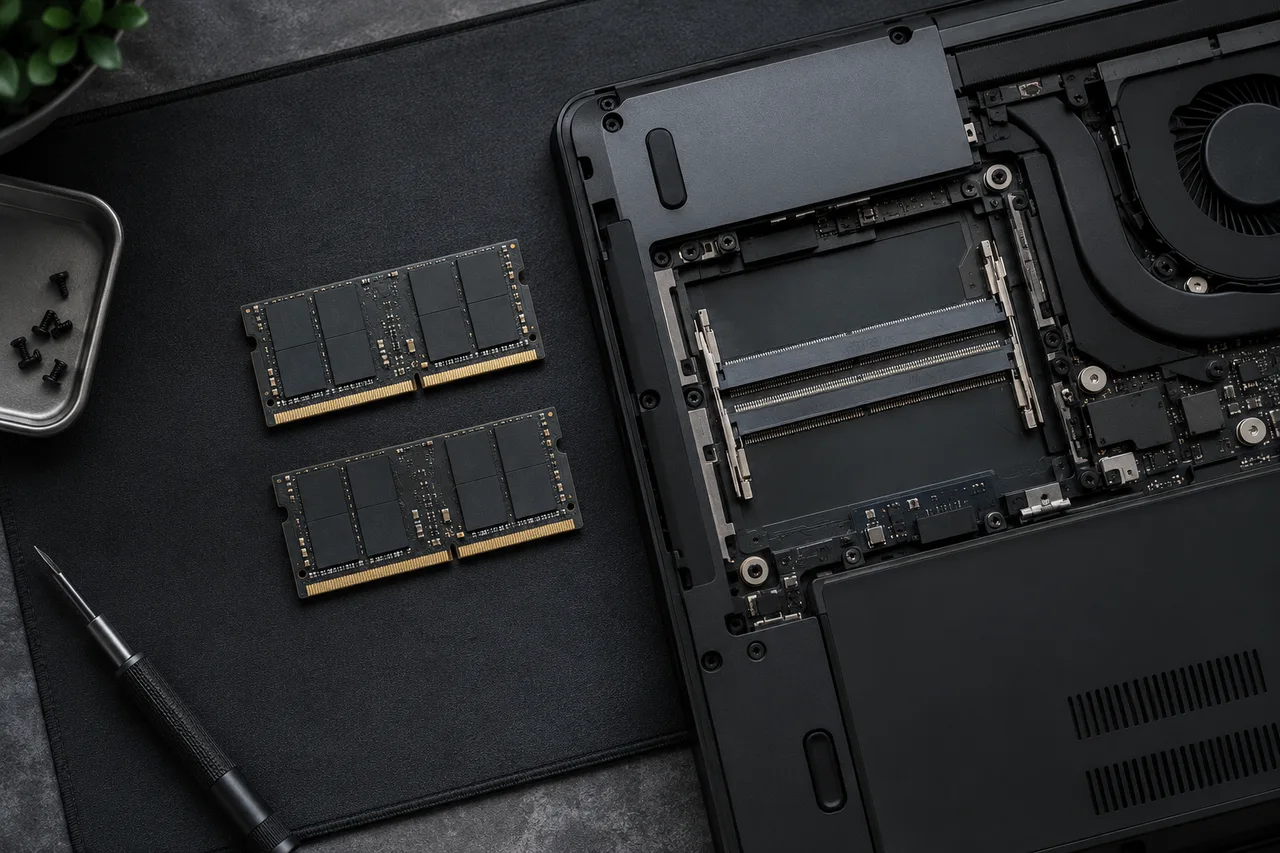
Record supported form factor and length, slot protocol, physical constraints and manufacturer instructions. Check whether there is space for a heatsink, and do not assume that a drive with an included heatsink fits a laptop.
Kingston warns that some M.2 slots share resources with other ports. The motherboard manual helps establish whether installing a drive disables or limits another connection. [2] This matters particularly when several drives are already connected.
When buying an external enclosure to reuse a drive, verify its protocol too. Both products having “M.2” in their names does not establish compatibility. Keep a record of exact model references so you can check them with the seller.
The biggest number does not summarize the experience
Drive specifications distinguish sequential reads and writes from random operations and state measurement conditions. The Crucial MX500 datasheet provides an example of these categories; we are not using it as a current purchase recommendation. [3]
A large continuous copy differs from opening many small files. An advertised speed improvement does not automatically produce the same percentage improvement in application startup. Write down the change you actually want: more capacity, less waiting when moving projects, or replacement of a problematic drive.
Compare results for the same capacity and configuration when reliable tests are available. Without measurements of the exact model, treat manufacturer figures as specifications rather than guaranteed results on your computer. Avoid paying for an improvement whose benefit you cannot connect to your task.
Plan the replacement, not just the purchase
- Make a verified backup before changing storage.
- Choose between a fresh installation and migration, and prepare the necessary tools and licences.
- Store encryption recovery keys securely if encryption is enabled.
- Follow the manufacturer’s maintenance procedure, including power-disconnection instructions.
- Verify startup, files and capacity before erasing the original drive.
The final criteria are straightforward: confirmed compatibility, enough capacity for your expected needs and suitable performance for your tasks. We do not publish prices or a “best SSD” ranking here without a verifiable comparison. This guide helps you ask the questions a product listing often leaves unanswered.
Resolve the purchase with a compatibility checklist
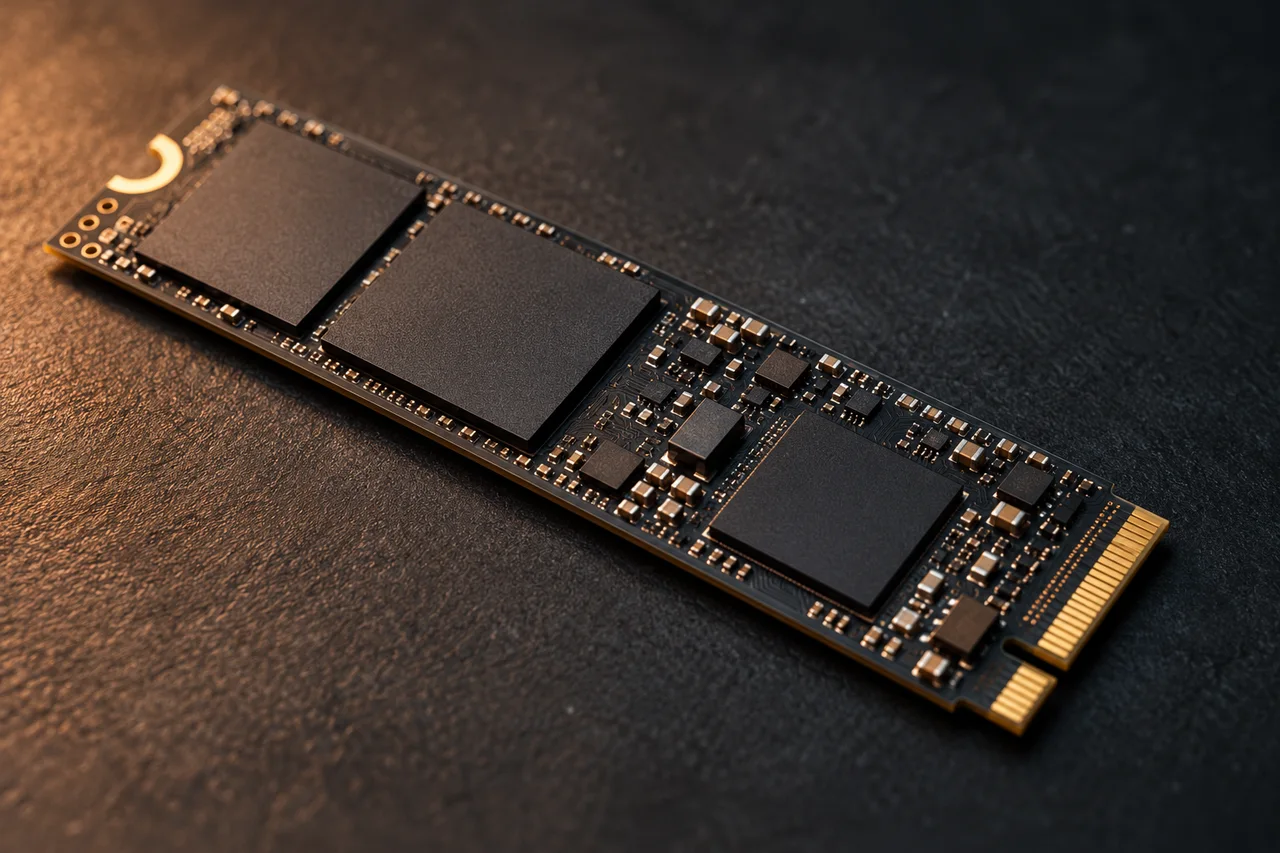
Example: the manual specifies an M.2 2280 slot supporting PCIe/NVMe only. An M.2 SATA drive can have similar dimensions yet fail to work in that slot. M.2 alone does not identify the protocol. The 2280 designation describes 22 mm width and 80 mm length; also verify height clearance, heatsink and screw position.
- Record the exact computer model and intended slot.
- Extract supported form factor, lengths and protocol from its manual.
- Match these fields against the complete SSD part number.
- If replacing the boot drive, prepare backup and recovery before disassembly.
- If adding a drive, identify the new one by capacity and model before initializing it. Initializing or formatting the wrong drive can destroy data.
Slow application launches do not prove you need the fastest SSD: CPU, memory or many small files may limit the task. Compare the workload you care about, not just headline sequential speed.
Sources and documentation
Sources consulted on October 7, 2026. Original documentation; linked sources may be in English.